fbpx

How Do Users Experience Canva's AI Image Generator?

Key Findings

You’re probably curious to know how Canva’s image generator was experienced by users. So before we dive into the development of the study, here is a quick list of some important pain points that users of Canva’s AI image generator identified:

  • Prompt Precision Required: Users found the AI struggled with general concepts and required extreme specificity to generate usable images, leading to a time-consuming trial-and-error process.

  • Misinterpretation of Intent: The AI often misunderstood user goals and constraints – such as ignoring requests for “no people” or misreading the purpose of an image (e.g., business card design vs. image of a business card).

  • Interface Frustrations: Poor visibility of the prompt box and difficulty locating the image generator within Canva’s interface disrupted workflow and led to unnecessary repetition.

  • Limited Creative Flexibility: Users were disappointed by the restricted number of outputs (only four per prompt) and the lack of advanced features like iterative feedback or direct image modification.

  • Absence of Guidance Tools: Participants expressed a desire for brainstorming support, inspirational prompts, and tutorials to help craft effective image requests.

  • Editing Integration Gaps: Users wanted seamless access to Canva’s existing image editing tools – such as AI art removal – during the generation process to refine outputs without starting over.

Now for the whole story...

Background

When I tried Canva’s AI image generator for the first time, I was so excited! I expected Canva to create an image that surpassed my imagination – all based on my prompts. As I navigated the tool, I noticed some issues with the design and functionality. This motivated me to design a user research study to explore user’s experiences with Canva’s “Magic” AI image generator.

Research Goals

Here are the questions I set out to explore about Canva’s AI image generator:

  • How do users feel about the process of using the feature?
  • What are users’ pain points when using the feature?
  • What are users’ satisfaction level about the image result(s)?
  • What are users’ recommendations for how the feature might be improved?

screen with clip art

Method

I chose a mixed methods study to collect behavioral and attitudinal data using quantitative and qualitative methods. I conducted moderated usability testing remotely using Zoom, and used NotebookLM to create a transcript of each audio file which I then analyzed along with the video recording of each session.

During the recorded user interview on Zoom, user’s shared their screen. I asked each user to think aloud so that I could capture the user’s thought process and reactions while navigating the feature – on both the video and audio recordings. 

Moderated Usability Test

The usability test had two parts:

Prompt 1

 First, the user was asked to create an image as follows:

You need to create an image for a blogpost entitled “5 Tips to Enjoy Your Next Beach Trip.” Create an image for your post using Canva’s AI tool.”

The first task was designed to conjure up a familiar image in the users’ minds that they could easily visualize  – to make it easier to them to write an image prompt for AI.

Prompt Writing Tips

After the participant completed the first image, I pasted these prompt writing tips into the Zoom chat to see how that might help users in creating the second image.


 ✏️ Prompt Writing Tips

🖼️ Be Descriptive Include objects, settings, colors, and styles.

Example: “Beach picnic with pastel umbrellas and a sunset sky”

🎨 Use Visual Keywords Mention lighting, texture, or composition.

Example: “Flat lay of beauty products on a marble surface with soft lighting”

🎯 Add Purpose or Audience Clarify the use case or vibe.

Example: “Bold graphic for a summer travel blog” or “Luxury branding for makeup artist flyer”

🔁 Try Variations Test different combinations or styles.

Tip: Swap out adjectives, change themes, or refine the focus

💬 Think in Images. Describe what you’d want to see in the final picture
Then, I asked the user to create an image as follows:

Prompt 2

“You are creating a branding image for a party planner’s business card. Create a branding image for the business card using Canva’s AI tool.”

The second task was designed to be more challenging since it required users to brainstorm what image would be appropriate for a party planner’s business card. It was expected that users would engage the AI image generator in the process of brainstorming this image.

During the usability test, I took notes on the user’s navigation patterns, verbalized thoughts, prompt revisions, facial reactions, time on task, and engagement level. These enabled me to put myself into the user’s shoes and gave me a lot of insight into both the positive and challenging aspects of the user’s experience

User Interview

After the tasks were completed, I asked user’s about their experience using the AI image generator:

  • How did you feel about the overall experience of using Canva’s AI image generator?
  • What stood out to you the most – either positively or negatively?
  • How easy or difficult was it create an image?
  • Can you walk me through any difficulties or challenges?
  • Did the prompt writing tips impact your creating your second image? If so, how?
  • What was the difference between your experiences creating your first and second images?
  • What patterns did you notice about the process of creating your images?
  • Looking at the images you generated, how satisfied are you with the results?
  • How confident would you be in using this tool for a real-world project like social media post, presentation, or marketing material?
  • Based on your experience, what recommendations do you have for to improve this feature?

SUS Survey

Before the close of the session, I asked the user to click on a link in the Zoom chat to access a Google Form containing the 10 questions of the System Usability Scale. The SUS is used to get a quick, quantitative measure of a digital product’s perceived usability, allowing for benchmarking, and tracking improvements over time. The SUS consists of 5-point Likert scale questions (from strongly agree to strongly disagree). Results need to be calculated using the standardized formula. This way, the total score can be compared across different products or versions, helping to identify areas for improvement and understand how well the system meets user needs. 

The first section of the survey included two questions about user’s satisfaction with their images, followed by the 10 SUS questions:

Instructions: Please rate your level of agreement with the following statements after using Canva’s AI image generator. (1 = Strongly Disagree, 5 = Strongly Agree)

  1. I am satisfied with the first final image I created.
  2. I am satisfied with the second final image I created.
  3. I think that I would like to use this system frequently.
  4. I found the system unnecessarily complex.
  5.  I thought the system was easy to use.
  6. I think that I would need the support of a technical person to use it.
  7. I found the various functions in this system were well integrated.
  8. I thought there was too much inconsistency in the system.
  9. I would imagine that most people would learn to use this system quickly.
  10. I found the system very cumbersome to use.
  11.  I felt very confident using the system.
  12. I needed to learn a lot before I could use the system.

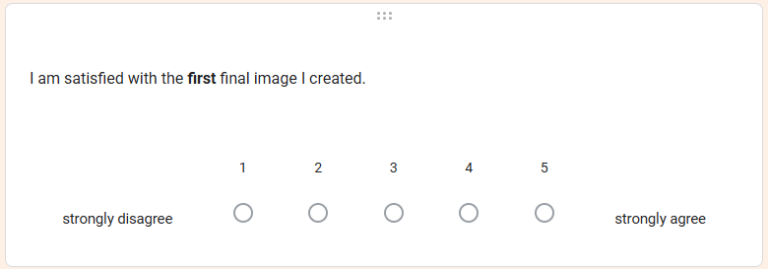
Here is a screenshot of a question:

SUS scale screenshot

The second section of the survey focused on demographics such as age, gender, occupation or role, and highest education level.

It also gauged the user’s previous experience with AI image generators. Users were asked:

  • Have you used Canva’s AI image generator before?
  • How familiar are you with AI image generators, in general?

Participants

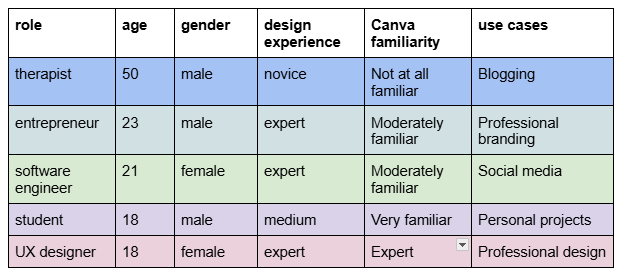
A diverse set of 6 participants were selected from my friends and family based on:

  • Design experience (novice to expert)
  • Use cases (social media, professional, personal projects)
  • Platform familiarity (Canva regulars vs. new users)

Quantitative Results

Time on Task

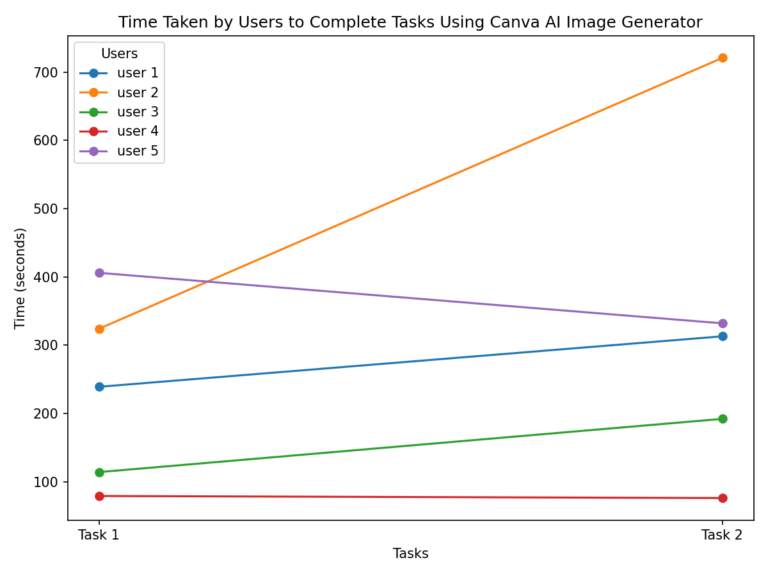
Task completion was measured in seconds from the end of detailing task instructions to the user deciding the task was complete. The time was calculated based on time stamps in the audio transcripts. Time stamps were identified in the session from when I said, “Beginning task now” until the user decided the task was complete and I said, “Ending task now.”

Most users took longer to complete Task 2. User 2 had a significant jump – task 2 took twice as long. This makes sense since the second task instructions were more abstract and challenging. Users could not immediately visualize what they wanted the image to look like so they needed to figure out how to use the image generator to brainstorm ideas for the image.

Time on Task

Repeat Attempts

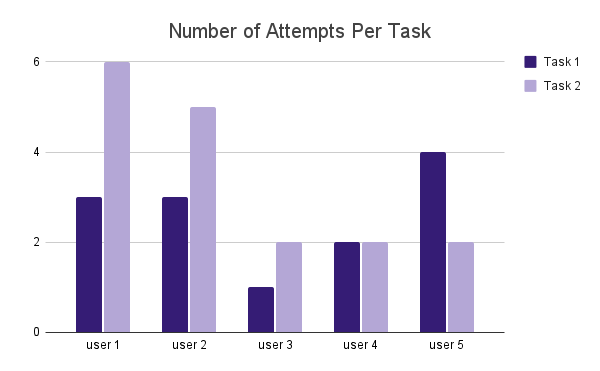
Users generally took less than four attempts to create and select a final image (Averages: Task 1 = 2.6, Task 2 = 3.4). It is interesting that while most users found task two more challenging and therefore took more attempts to select a final image and complete the task, user 5 took more attempts to complete the first task. Based on the feedback user 5 provided during testing as he thought aloud,  it seems that he gained strategies to use the feature more efficiently during his many attempts at the first task. This might have enabled him to complete the more challenging second task faster.

The average number of attempts per task reflects how many tries users needed to generate an image for which they had no personal stake. Further research should explore how many attempts users require when creating images that serve their own specific goals.2.6

Number of Attempts Per Task

Image Satisfaction

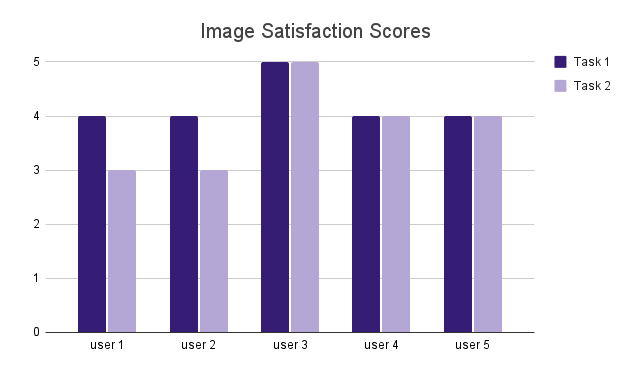
Users were generally satisfied with the final images they created based on their ratings using a 5-point Likert scale (Averages: Task 1 = 4.2, Task 2 = 3.8)

Image Satisfaction Scores

System Usability Scale Scores

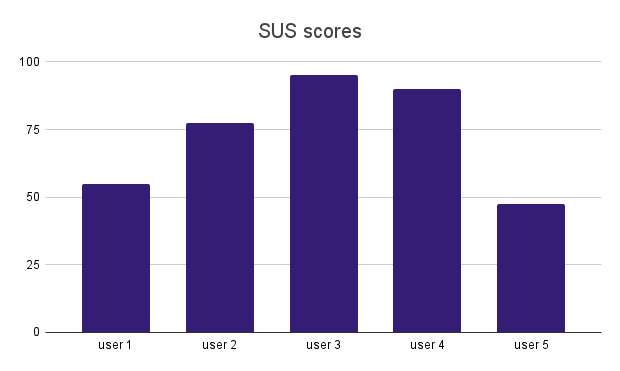
System Usability Scores (SUS) were calculated as required for this standardized scale.  The SUS scores were consistent with the time on task and task attempts for each user. By triangulating the data this way, we can see that users who spent more time and had more attempts generally had lower SUS scores, indicating they their issues with the technology impacted its usability.

SUS scores above 68 are generally considered above average, so low user scores such as User 5 score of 47.5 and User  1 score of 55 reflect user pain points and should warrant our attention.

SUS scores

Qualitative Results

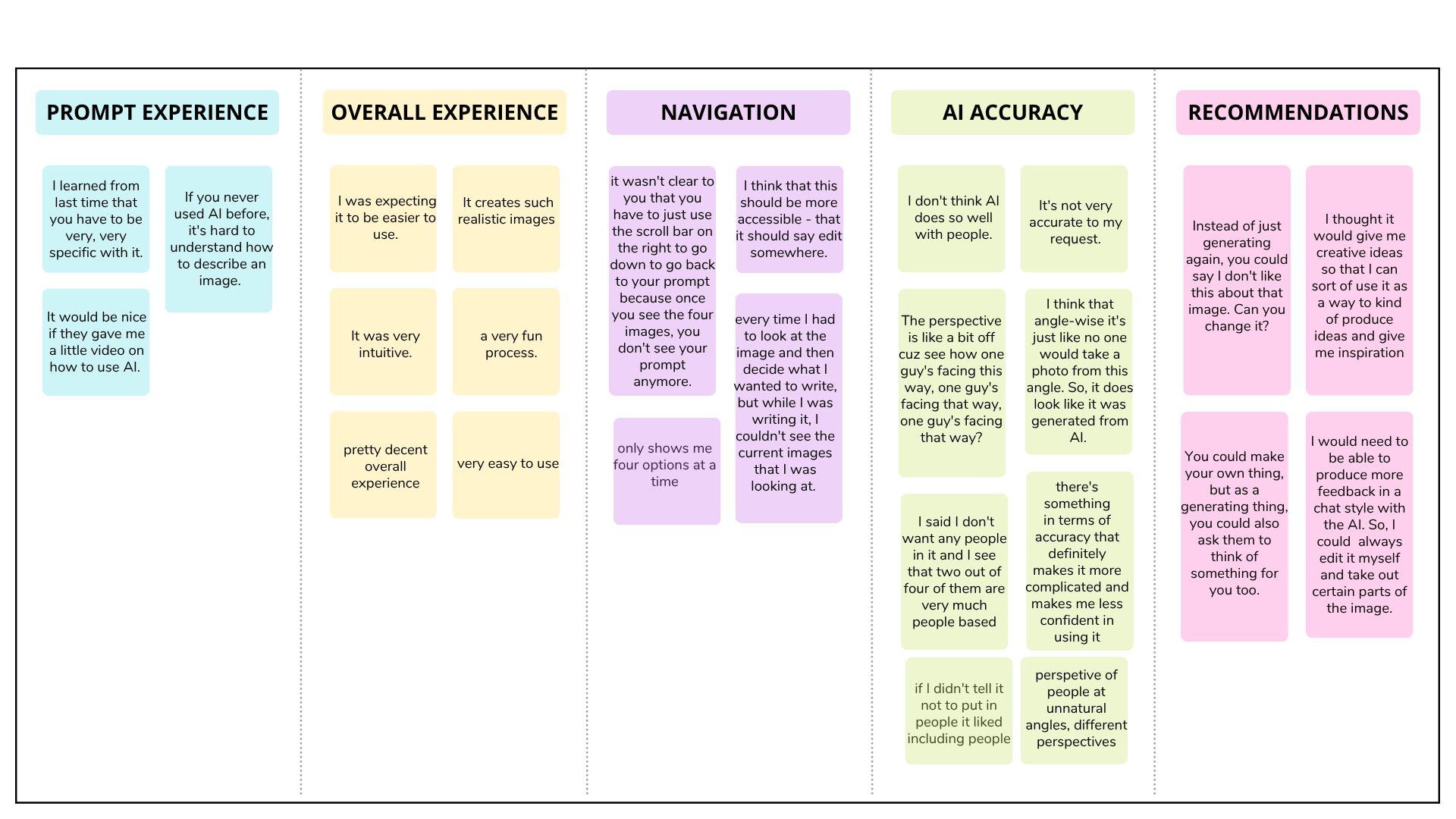
Affinity Diagram

User Journey Map

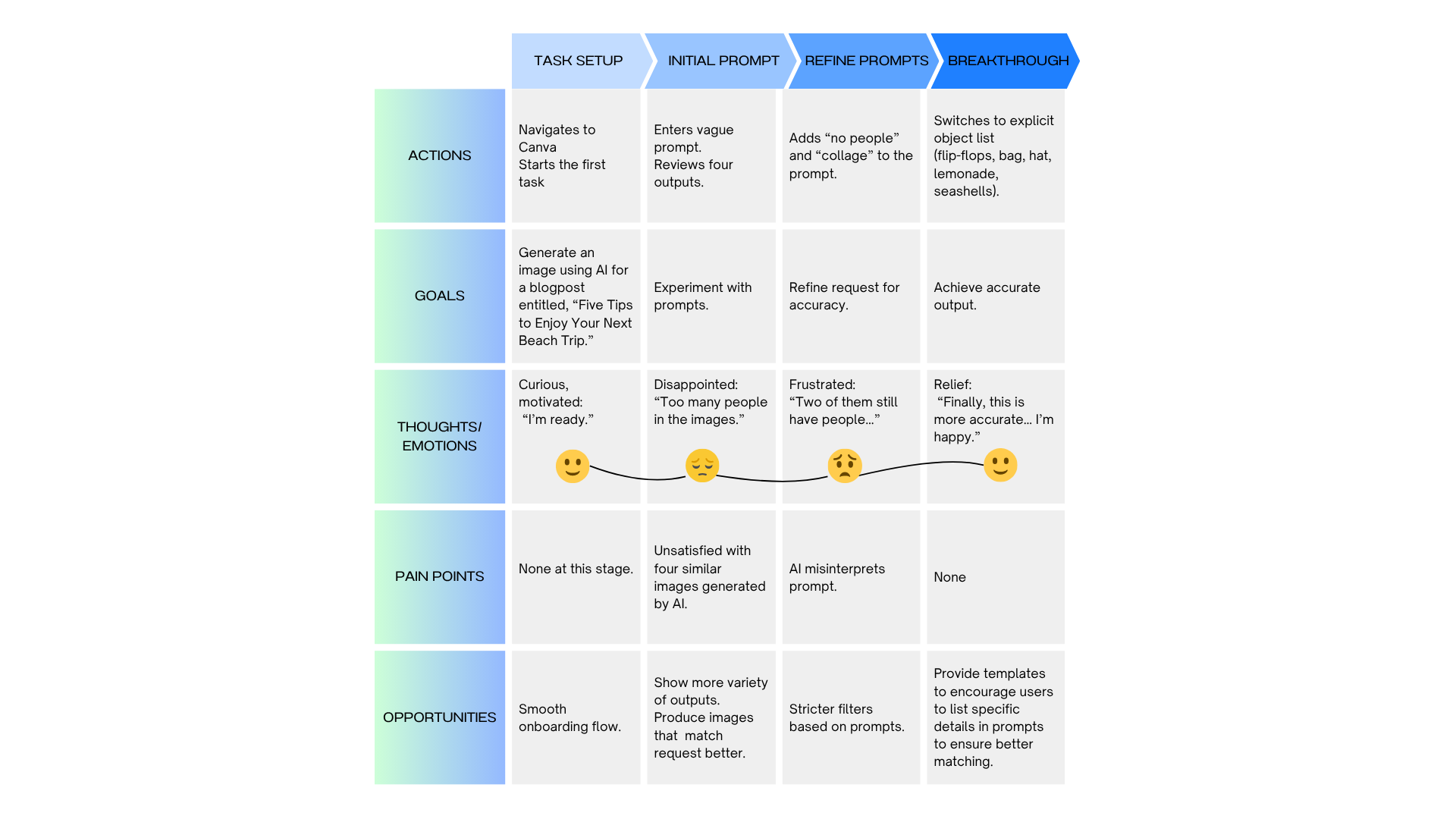
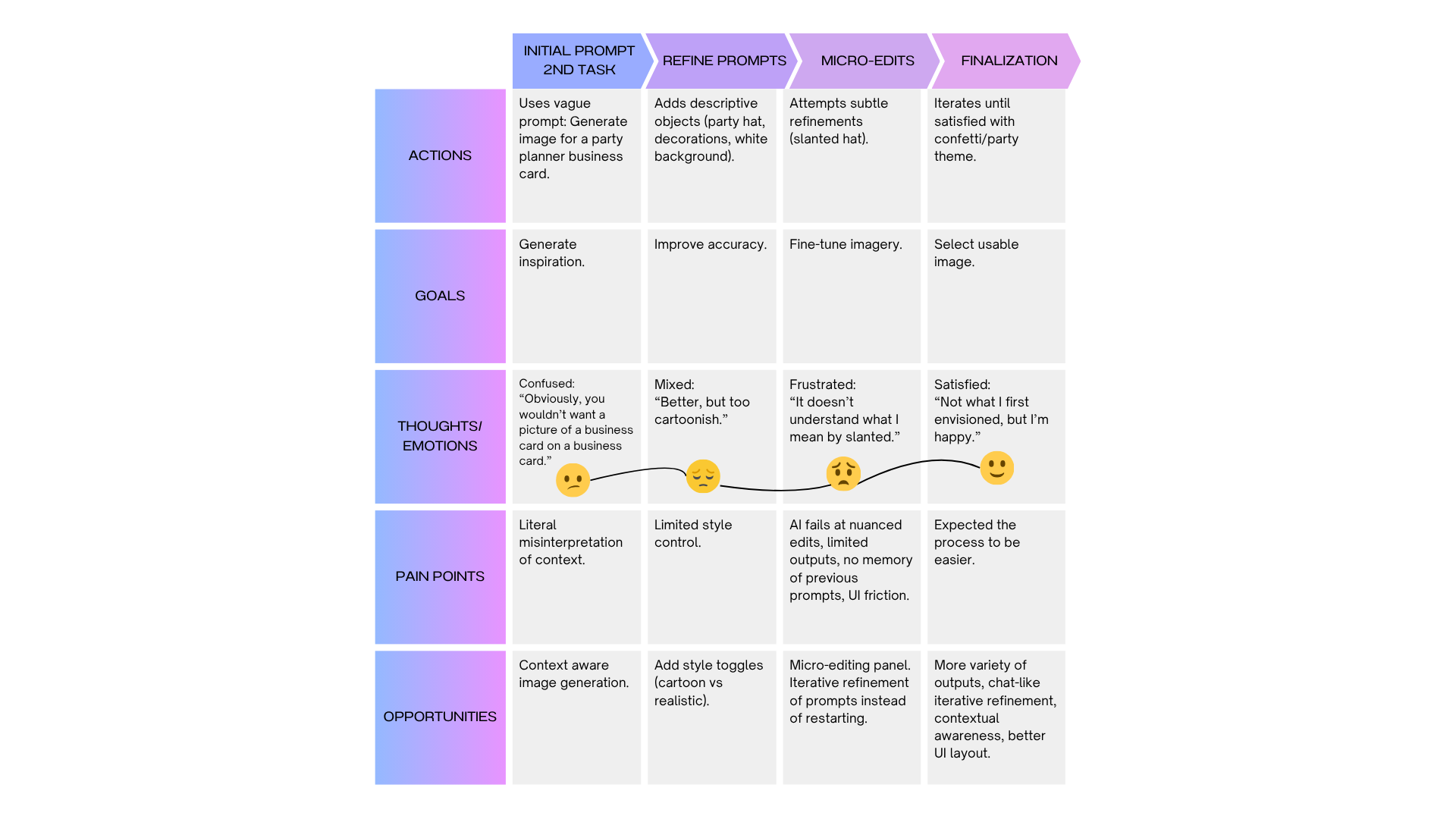
I created a user journey map based on the transcript of a user in order to share a vivid case study with stakeholders. Using actual quotes while following the user’s experience with Canva step-by-step captures the authentic details that can help inform researchers about user pain points and opportunities.

Persona
  • Name: Sarah
  • Age: 21
  • Occupation: Software Engineer
  • Goal: Use Canva’s AI Image Generator to create images for social media/blog content quickly
Canva AI Image Generator User Journey Map Part 1
User Journey Map Part 1
Canva AI Image Generator User Journey Map Part 2
User Journey Map Part 2

Key Takeaways

  • Sarah’s highs: when explicit object lists worked, and when she finally accepted a usable image.

  • Sarah’s lows: only 4 outputs, vague prompts misinterpreted, lack of chat communication with AI, lack of refinement tools, UI friction.

  • Opportunities: expand outputs, enable chat communication for iterative refinement, add style controls, improve UI, and support brainstorming mode.

User Recommendations

Let’s explore opportunities for Canva to improve its AI image generator based on user feedback:

AI Accuracy and Prompt Interpretation

A primary source of frustration was the AI’s difficulty in accurately understanding and executing user prompts, which often required an unexpected level of trial and error.

  • Need for Extreme Specificity: Users were surprised that they needed to be “very, very specific” to get a desirable result. The AI struggles with general concepts, such as “things to take to the beach,” and instead requires the user to list the exact items they want to see – like flip-flops, a beach bag, and lemonade. This process took much more time than users anticipated.
  • Failure to Understand Intent and Constraints: The AI often misinterpreted the user’s goal. For instance, when asked to create an image for a business card, it generated pictures of business cards. It also frequently ignored negative constraints; one user repeatedly asked for an image with “no people” but was consistently shown images that included people. Another user noted the AI is not particularly good at generating realistic people, citing unnatural perspectives and angles as a “weakness” of the tool.
  • Ignoring Context: Providing context for the image’s purpose, such as specifying it was for a “blog post” or a “business card,” did not seem to influence the style or nature of the generated images. One user expected the AI to act as an expert and “intuit” what was needed based on its training, but found it could not.

User Interface and Usability Issues

Users encountered several obstacles within Canva’s interface that made the image creation process cumbersome and unintuitive.

  • Poor Visibility of the Prompt Box: After generating images, the prompt input box is pushed off-screen. Several users did not realize they needed to scroll down to find it again. This led them to believe their prompt was gone, forcing them to start over unnecessarily. One user decided to manually copy and paste their text to avoid retyping everything. This layout also prevents users from seeing the generated images while they are typing a new prompt, making it difficult to refine their request based on the previous results.
  • Difficulty Locating the Feature: Some users found it hard to find the AI image generator (“Magic Media”) in the first place, noting its location was not logical or intuitive, especially when working within an existing Canva file.
  • Service Delay Due to Server Overload: Servers should be updated to handle many users using the Dream Lab simultaneously. One user received a message, “Lots of people are using Dream Lab right now. Please try again in a few minutes.”
  • Inability to Modify a Specific Generated Image: Users expressed a strong desire to select an image they liked and make minor modifications to it directly. They found it frustrating that they could not take a good result and simply “enhance it” or “subtly change it”. Instead, they had to start the entire generation process over.

Limited Options and Lack of Advanced Features

Users felt the tool was limited in its creative capacity and lacked features common in other AI image generators.

  • Restricted Number of Outputs: The generator only produces four image options at a time, which users found to be “very, very limited.” This small selection restricts the variety of creative directions and makes it harder to find a suitable image without multiple attempts.
  • No Brainstorming or Guidance: Users wished the tool offered inspirational prompts or suggestions, especially when they were unsure what they wanted. One user suggested that a short tutorial video on how to write effective prompts would make the feature “more accessible for all users”.
  • Lack of an Iterative Feedback Loop: Unlike other tools that use a chat-style interface, Canva’s generator does not allow users to provide iterative feedback on a generated image (e.g., “make it more dark” or “change the color”). This forces a “start from scratch” approach rather than a collaborative refinement process. One user described this as a key limitation, stating, “you’re not collaborating with the… AI to work on an image. You’re just re-prompting it”.
  • Advanced Image Editing Intergration: Canva has an AI art removal tool. One user suggested integrating this tools, as well as Canvas other image editing tools so that users could remove parts of the generated images during the process. 

Lessons Learned

I combined moderated usability testing with in-depth user interviews and found the pairing especially powerful for studying Canva’s AI image generator. During moderated sessions I could experience the process alongside participants, capture real-time thoughts and feelings while they worked through tasks, and then follow up with targeted post-task reflections. Remote video moderation that produced simultaneous audio and video transcripts, coupled with a short post-session survey, yielded a rich mix of qualitative insights and quantitative measures that made it easier to surface pain points and opportunity areas.

For transcription and post-session processing I used GoogleNotebookLM, which required several prompt iterations to produce useful speaker-stamped transcripts. Extracting reliable timestamps and calculating time on task from those transcripts proved tedious, because I had to tune prompts to get per-speaker time marks. Current meeting-focused transcription services such as Otter.ai do not automatically compute task durations from verbal cues, so finding a tool that can detect researcher-defined markers like “Begin task now” and produce time-on-task metrics would save substantial manual effort and reduce error.

Overall, the combined method yielded depth and actionable insights: moderated sessions captured context and emotion, transcripts and surveys supplied structured evidence, and post-hoc analysis translated findings into concrete UX recommendations. Improving the transcription-to-time-on-task step would close a practical gap in workflow, streamlining analysis and making task-based metrics more reliable. For future studies I would explore a transcription workflow that accepts simple verbal markers and outputs speaker-aligned timestamps and task-duration calculations.